About
Need to keep notes on your iPhone? SyncBook is the better alternative.
SyncBook allows you to keep all your important information perfectly in sync between your iPhone (or iPod touch) and your Mac, while still being able to edit it on either.
Mac OS X 10.5 (Leopard) and WiFi is required for Mac syncing.
SyncBook for Mac
To sync with your Mac start by downloading the free Mac client here. (10.5 required)
What's New
Version 1.1 (8-Oct-2008)
- Added "Add Note" function to Mac client.
- Added support for importing RTF, HTML and Text Clipping files. Select "Import..." from the File menu or drag documents to the SyncBook icon in the dock. Imported documents are converted to text files.
Version 1.0.4 (21-Sep-2008)
- Fixed a bug where categories wouldn't update correctly when syncing.
- Fixed syncing "-98" errors.
Version 1.0.2 (17-Sep-2008)
- First Release
Details
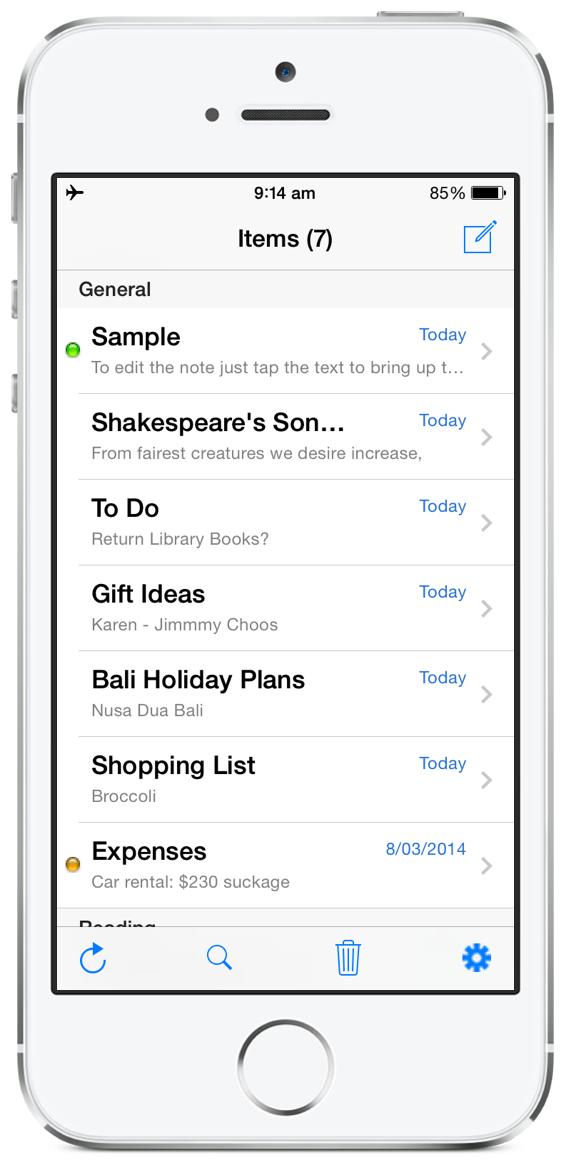
SyncBook allows you to keep and edit plain text notes on your iPhone.
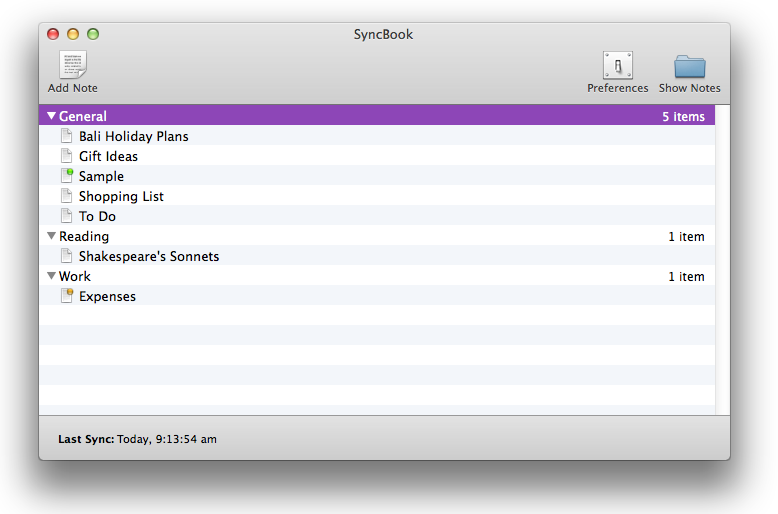
SyncBook's Mac client allows you to sync these notes to and from your Mac.
On your Mac, you can use your preferred text editor to edit your notes.
To add a note on your Mac, open the SyncBook application, click the "Show Notes" button. Then copy the text files (.txt) you want added, into the notes folder shown in the Finder. The next time you sync they will be added to your iPhone.
When saving a note from TextEdit make sure the document format is plain text. If your document format is Rich Text select "Format" -> "Make Plain Text" before you save the document.
How do I sync to my Mac?
Simple. Open SyncBook on your Mac, then on your iPhone, click the refresh button in the bottom-left of the main screen. Tap the name of the Mac you wish to sync with (it may take a few seconds for your Mac to appear). You're done! SyncBook will then synchronize all your notes.
Trouble Syncing?
Click here to view the troubleshooting page.
FAQ
What kind of notes does SyncBook support?
Currently, SyncBook only supports plain text notes.
Is a Windows or MacOS X 10.4 (Tiger) version of the desktop client planned?
Sorry, there are currently no plans for a Windows or MacOS X 10.4 (Tiger) version of the sync client.
Can I reorder categories?
Yes. On your iPhone, Tap the settings icon. Tap categories. Press and drag the category to change it's display order on the main screen.
How can I add notes using my Mac?
Simple, just launch SyncBook on your Mac and click the "Show Notes" button. Then copy the text files you want added into the notes folder shown in the Finder. The next time you sync they will be added to your iPhone.
Can I delete notes on my Mac?
No, you must delete the note on your iPhone. When you sync the note will be deleted from your Mac.
What happends to deleted notes?
Delete notes are moved to the Trash folder on your Mac when you sync. If you wish to have the notes deleted immediately, click the "Preferences" button and uncheck "Move delete notes to Trash"
What happends if I change a note on my iPhone AND on my Mac before I sync?
When you sync, the note on your Mac will be added to the "(Saved Notes)" folder inside the notes folder. The version of the note on your iPhone will be placed into the notes folder. You can then merge this note with the note in the (Saved Notes) folder if you wish.
Are there any restrictions on note names?
Yes. Although SyncBook supports categories each note must be uniquely named.
Do you plan on adding support for other file formats?
Yes! Please use the Contact link above to request other formats you would like to see supported.
I've got a question that isn't answered in the FAQ. How can I get in contact with the author?
Click the Contact link on the menu on the top left. Please allow up to 2 business days for a reply.